

Purpose: Use this guide to submit time‑off requests on behalf of an employee in Campus Time & Attendance (CTA).
Who this is for: Supervisors/Admins who manage time‑off in CTA via the MyUAB portal.
TABLE OF CONTENTS
How to:
- Access CTA: From your MyUAB portal, open the Campus Time & Attendance app.
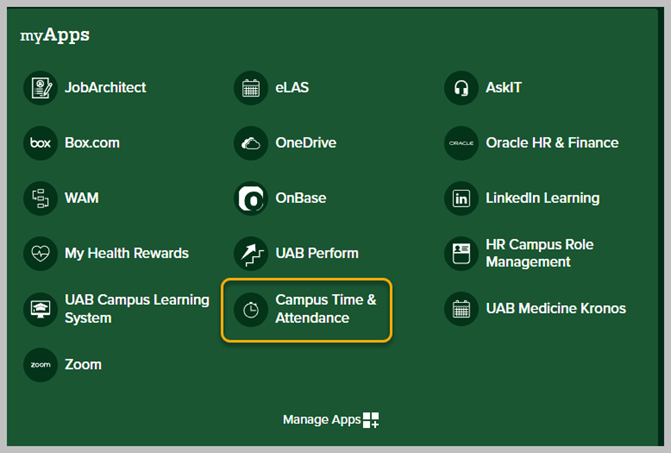
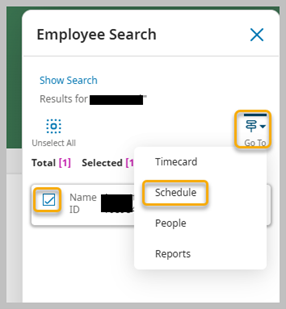
- Use the magnifying glass to the top right to search for the employee. Select the employee and click on the “Go To” dropdown and select “Schedule”.
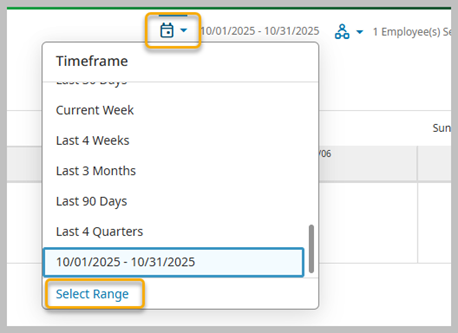
Choose the calendar icon to select the date range if using another period. If using the current period, no change is necessary. It can be added in any period that is still open for entries.
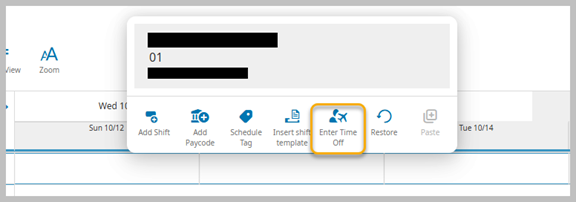
Now, right click on the actual day that you would like to start the request and select the “Enter Time Off” option in the pop-up.
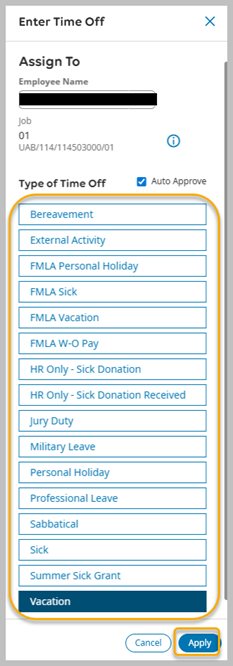
Select the “Type of Time Off” and click “Apply”.
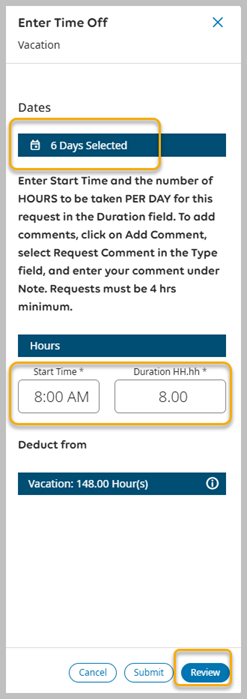
Use the calendar icon to open the date picker and select days. Click each workday the employee will be off:
- Do not include UAB‑paid holidays.
- Do not include weekends unless they are normally scheduled to work them.
Review & refine the details:
- Start Time (per day): Enter typical start time or, for partial‑day absences, the time they will begin their out‑of‑office period.
- Duration (per day): Enter the number of hours to deduct for each date. Do not enter the cumulative hours. CTA will calculate the total.
- The page shows the available hours for the selected leave type.Click “Review"
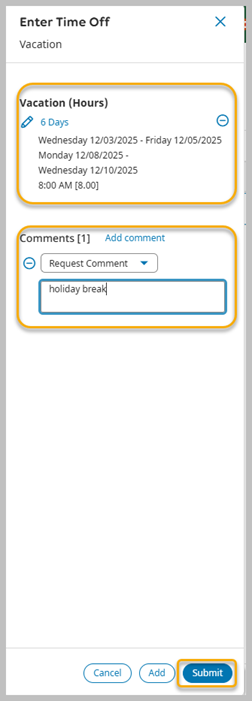
At this time, confirm the leave type and dates are correct, as well as the duration per day. Add a comment (optional): Keep comments generic—do not include sensitive or personal information.
Select “Submit”
Best practices:
- One month per request: If a request spans multiple months, submit separate requests by month. Editing/canceling a multi‑month request will impact all dates in that combined request.
- Use the calendar icon to utilize the date picker. This ensures that you select the missed working days only, especially if they are in multiple weeks. This ensures that you are not including paid holidays or weekends.
- Ensure any previously submitted requests are approved before submitting new requests. This ensures that the available balances displayed are correct.
- Duration is the working hours in a day (typically 8 hours). The system will calculate the total hours for the request based on the number of days requested. Only enter start time and duration. No “end” time is needed.
- Partial days: Enter the actual start time you’ll be out and the exact duration. The minimum is 4 hours outside of FMLA leave types.
Troubleshooting & tips:
- Can’t pick a date? You may be outside the allowed request window, may need to change the original date range you chose.
- Balances look off? Remember that Planned Taking (approved but not yet deducted) reduces what’s available. Also verify the as‑of date you’re viewing.